FAQ
Do I need a cable or a PC app?
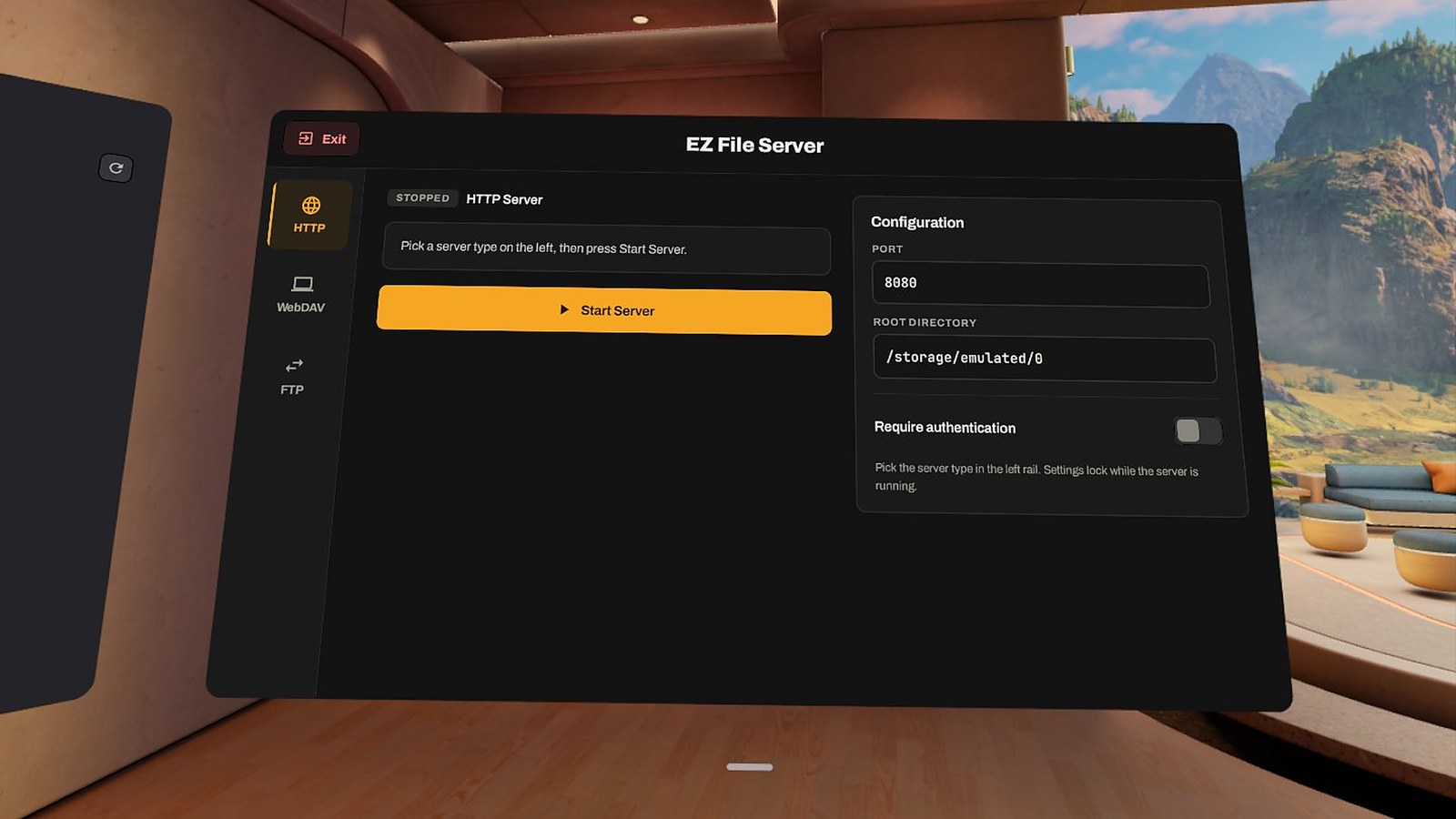
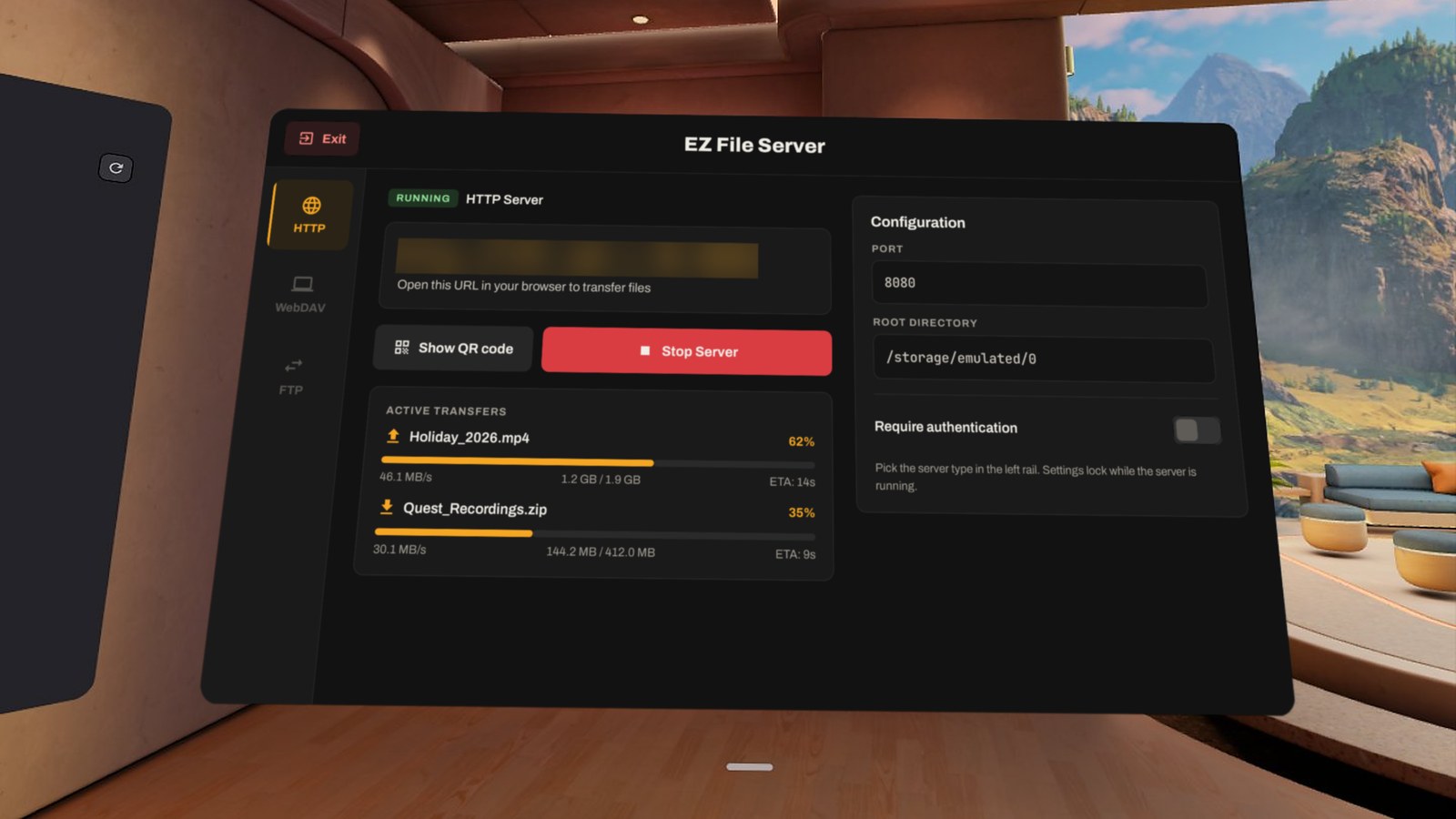
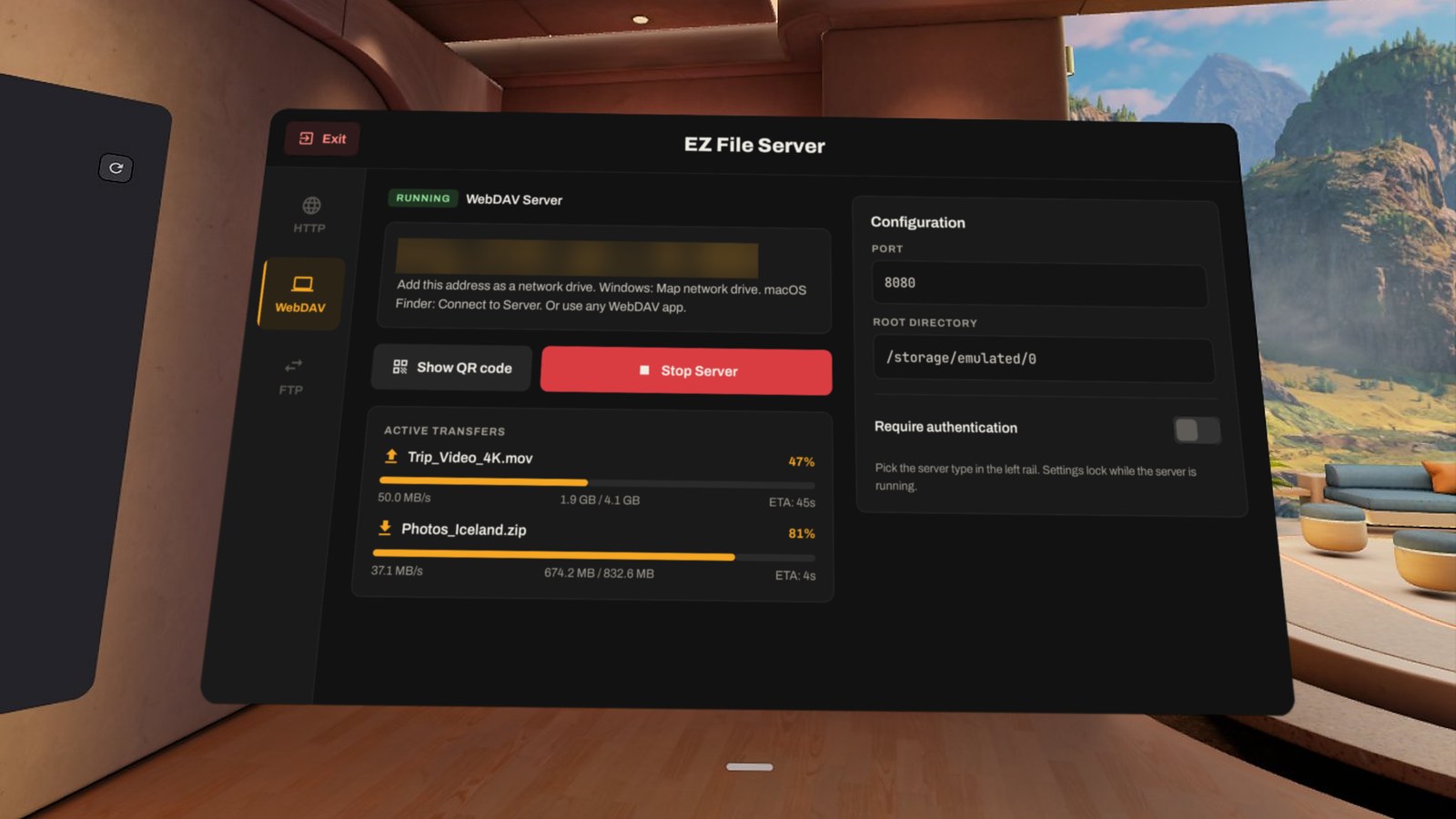
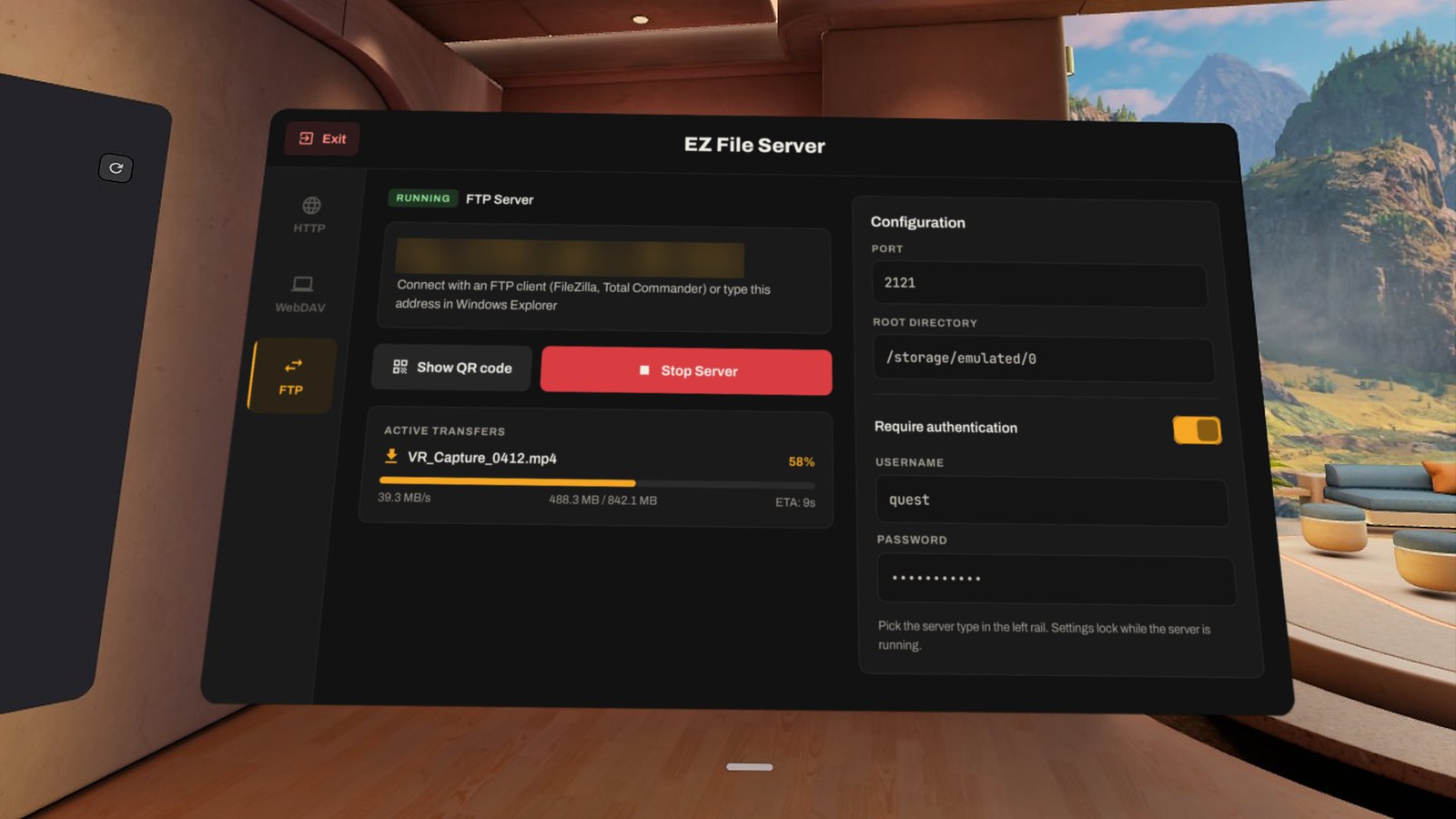
No. Your other device only needs a browser (HTTP), the built-in network drive feature of Windows or macOS (WebDAV), or any FTP client.
Does it work with phones and iPhones?
Yes. The HTTP panel works in any mobile browser. Upload photos and videos straight from your phone and download files from the headset.
Is my data sent to the internet?
No. Files travel only between your devices on your local network. EZ File Server has no servers, no accounts and no analytics. See the privacy policy.
Is the connection encrypted?
No. HTTP, WebDAV and FTP are plain, unencrypted protocols. Use EZ File Server on a network you trust (your home Wi-Fi), and turn on a password if others share that network.
Windows won't connect to WebDAV with a password
By default Windows only sends passwords to WebDAV servers over HTTPS. Either start the server without a password, or set BasicAuthLevel to 2 in HKLM\SYSTEM\CurrentControlSet\Services\WebClient\Parameters and restart the WebClient service. FTP and HTTP are not affected.
Does the server keep running when I close the app?
No. Closing EZ File Server (Exit, or closing its window) stops the server, so nothing stays shared by accident. Keep the app open while transfers run. If the headset goes to sleep, Wi-Fi may switch off and the server stops responding. Turn off auto sleep for long transfers.